
← All desktop apps
Device masking
DMask
Protect your browser fingerprint, manage proxies and run multiple profiles safely.
Blocked by your browser? Download the ZIP version instead
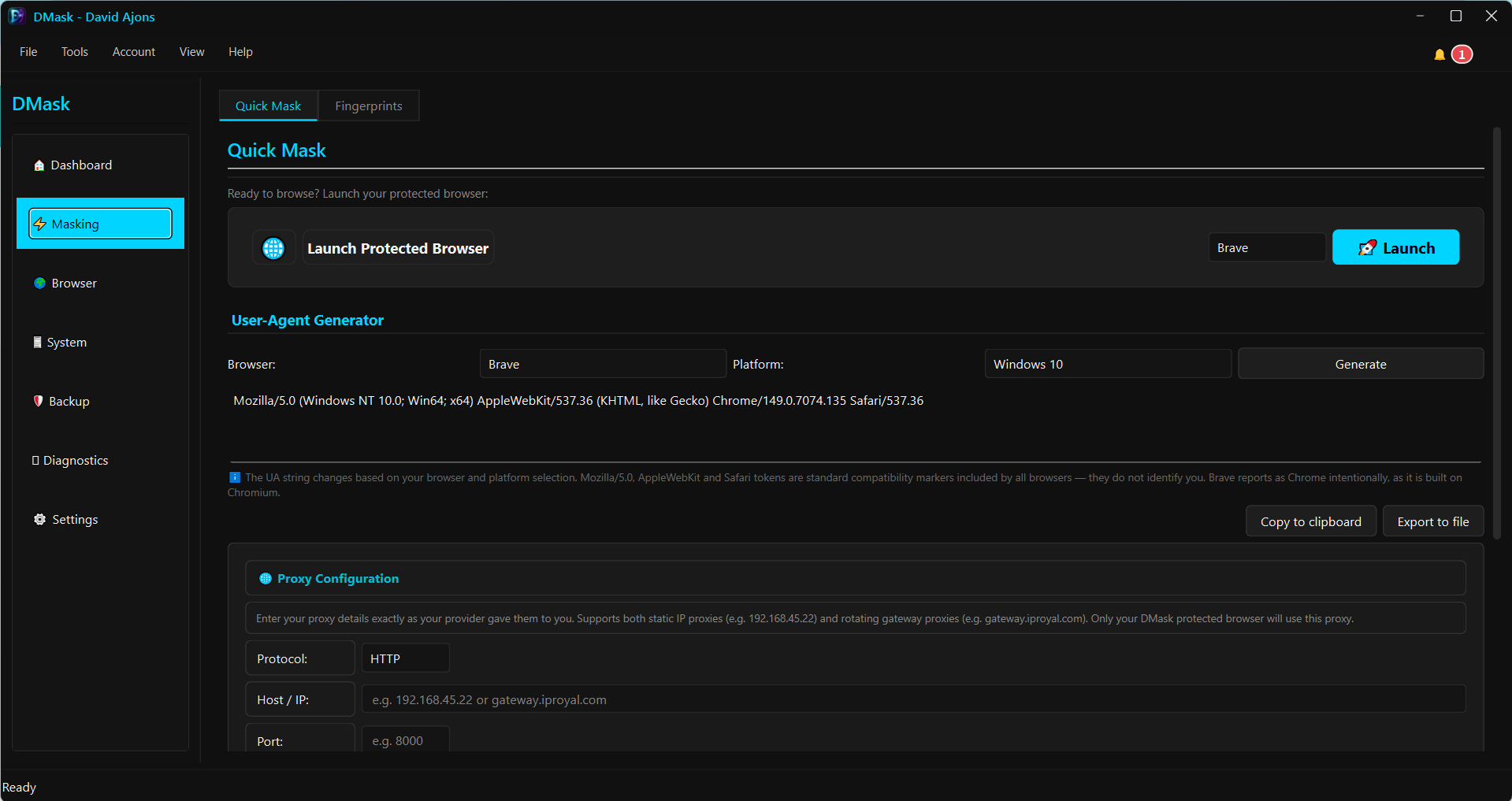
Why DMask
DMask helps teams and professionals manage multiple browsing identities safely by reducing fingerprinting risk and improving profile isolation.
Improved profile isolation and session stability.
Better proxy workflows and identity controls.
Performance and reliability improvements across the app.
Install and set up
From download to first run.
Windows SmartScreen may warn you. These apps are newly released and not yet code-signed, so Windows can show a “Protected your PC” message. Click More info, then Run anyway. The app installs no background services and does not modify system files.
- Click More info
- Click Run anyway
- Install and open DMask.
- Log in with your AJONS account.
- Create a profile for each identity you want to run.
- Add/assign proxies per profile (if needed).
- Launch a profile and work inside the isolated browser session.
- Keep one purpose per profile (one account per profile).
- Use stable proxies and avoid frequently switching identity details mid-session.
- Start with a small number of profiles and scale up once your workflow is stable.
Frequently asked questions
What does DMask do?
It helps protect your browser fingerprint, manage proxies, and spoof device identifiers so you can run multiple profiles more safely.
Is DMask available for Windows?
Yes. DMask is a Windows desktop app.
Do I need an AJONS account to use DMask?
Yes. Log in with your AJONS account after installing the app.